Step Three - Moving files to DirectAdmin
Next you will want to log into your DirectAdmin account.
If you have any add-on domains or subdomains click on Domain Setup.
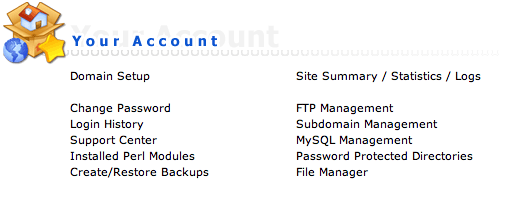
Once you have added the domains and subdomains you have, you can then click on Files in the top menu bar. Then click on the 'domains' folder. Here you'll see a list of each of your primary domain. For each domain you will want to click into them until you reach public_html.
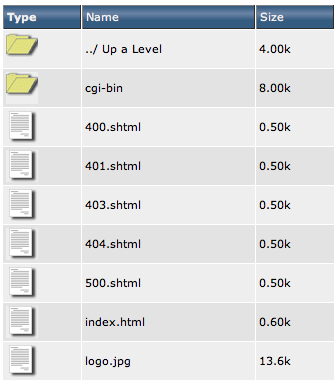
You can select all the files in this folder and delete them (Except for any subdomain folders). Once removed click on "Upload files into the current directory" button near the bottom. On this page you can select the zip file you created for that domain and upload it.

Once uploaded you can click on the 'extract' link in the same row. Doing so will give you a preview of the compressed archive's contents. As you can see from my test zip, being on OSX there's a couple extra files (such as __MACOSX and .dstore which can be deleted after extraction), and you can also see that when extracted it will create a public_html folder. Extract the file.
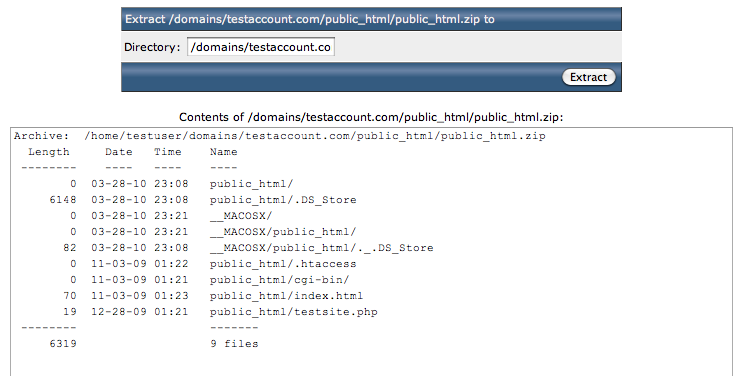
Once extracted, if the home directories files unpacked in the correct location then you don't have to worry bout moving anything. However if your compressed file extracted into a new folder such as another public_html folder, you'll want to click into that folder. And on the top right select all files, then click on 'Add to Clipboard'

Then you can go back up one folder, and then click 'Move Clipboard Files Here', after which you'll want to make sure to click 'Empty Clipboard'. From there you can delete the extra public_html folder, and the .zip file that was originally uploaded. Repeat this step for each domain you have. Subdomains will appear as a folder under the original domain's name. So if you have sub.testsite.com it will appear as a folder named /sub under /domains/testsite.com/public_html.
Wordpress and Database driven site Tip
If you run a wordpress blog, there is a good chance that your new DirectAdmin account does not share the same username as your Cpanel account. For this reason you will want to edit your wp-config.php file to change the prefixed username_database/usr to the new username before the _. Also note the password in the wp-config.php